A common task when architecting an application is storage. A common denominator for on-premise and in your favorite cloud provider. A recent project working with an application that demanded a lot out of storage. In Azure we had a few different options with the potential to meet the storage performance requirements. After some back and forth we settled on two options:
- Azure Managed Disk(s) configured as software RAID0
- Azure NetApp Files (ANF) at Standard or Premier performance tier.
A huge time suck was waiting as each iteration was built and configured for testing. To help this part of the process along I created a template and scripts to automate building out a test. With the goal being to have a fully single-use ready to go environment to test storage in a few minutes vs. hours or days.
Templating the testing environment
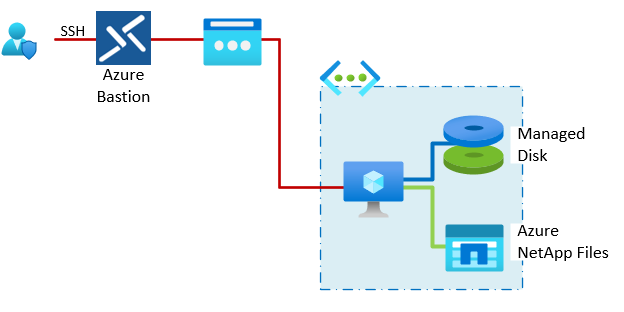
The purpose of this ARM template is to deploy a full stack environment with all resources and standard configuration. The template deploys a stand along environment that doesn’t have external dependencies for any other services from your org, and isn’t connected to anything. Remote SSH access to the testing virtual machine is available through Azure Bastion.
Virtual Machine
A Linux VM from is created Azure Marketplace. The VM SKU impact storage performance. The E64s_v3 is on the higher end of storage performance available at the time. On the Operating System I select Ubuntu 16.04-LTS. Any Debian-based distro should work YMMV.
| Default Options | |
|---|---|
| Virtual Machine SKU | Standard_E64s_v3 |
| Opertating System | Ubuntu Server 16.04-LTS |
Storage Config
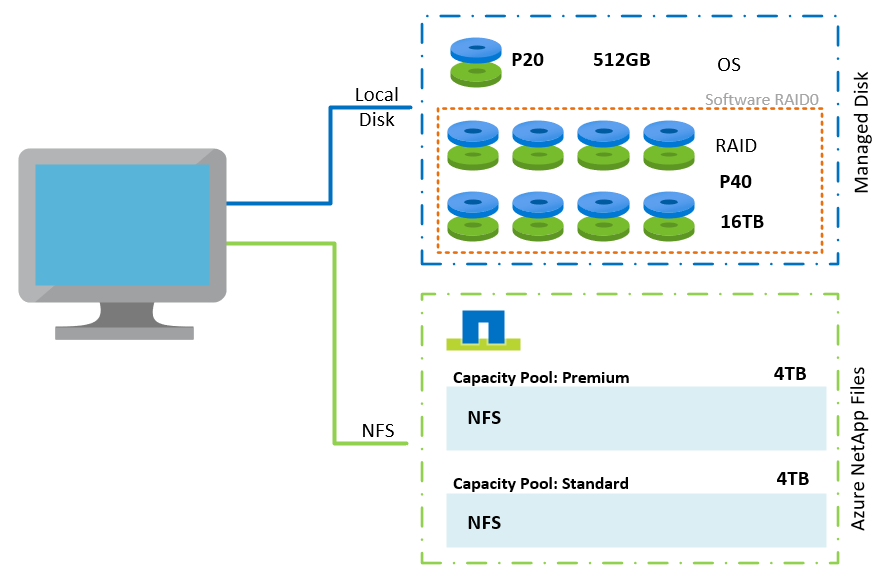
After the VM deployment is compelted. A post deployment BASH script is used to attache the storage and install Flexible I/O (fio) to run performance tests against the different storage options. The storage attahed to the VM is as shown in the table below.
note: The managed disk option needs to be configured as RAID0 to provide the targets IOPS.
| count | Storage | Connection | Capacity | Label |
|---|---|---|---|---|
| 1 | Managed Disk | Local Attached | 512GB | OS |
| 8 | Managed Disk | Local Attached | 2TB | RAID0 |
| 1 | ANF Volume | NFS3v3 | ANF Standard Tier | |
| 1 | ANF Volume | NFSv3 | ANF Premium Tier |
VM Configuration script
#!/bin/bash

# Install PreReqs
apt-get update
apt-get install fio --yes
apt-get install nfs-common --yes

# attach NetAppFiles storage
mkdir /mnt/anfPremium
mkdir /mnt/anfStandard

sudo mount -t nfs -o rw,hard,rsize=65536,wsize=65536,vers=3,tcp 10.200.200.4:/vol0 /mnt/anfPremium
sudo mount -t nfs -o rw,hard,rsize=65536,wsize=65536,vers=3,tcp 10.200.200.4:/vol1 /mnt/anfStandard

# Create RAID0 array

mkdir /mnt/raid0

sudo mdadm --create --verbos /dev/md0 --level=0 --raid-devices=8 /dev/sdf /dev/sdd /dev/sdi /dev/sdg /dev/sde /dev/sdc /dev/sdj /dev/sdh
sudo mkfs.ext4 -F /dev/md0
sudo mount /dev/md0 /mnt/raid0/
Performance Testing
Using fio I start with running standard performance tests on each storage option and compare the results. With that out of the way you are ready to run any more specific tests for your needs.
sudo fio --filename=/mnt/anfStandard/stdfile \
    --size=500GB \
    --direct=1 \
    --rw=randrw \
    --bs=4k \
    --ioengine=libaio \
    --iodepth=256 \
    --runtime=120 \
    --numjobs=4 \
    --time_based \
    --group_reporting \
    --name=iops-test-job \
    --eta-newline=1
Go Do It!
Go ahead and give this a try. As mentioned above this template will build a stand alone testing environment in Azure. Check out my GitHub link for more detail on how it work. Or hit the Deploy to Azure button to give it a try.