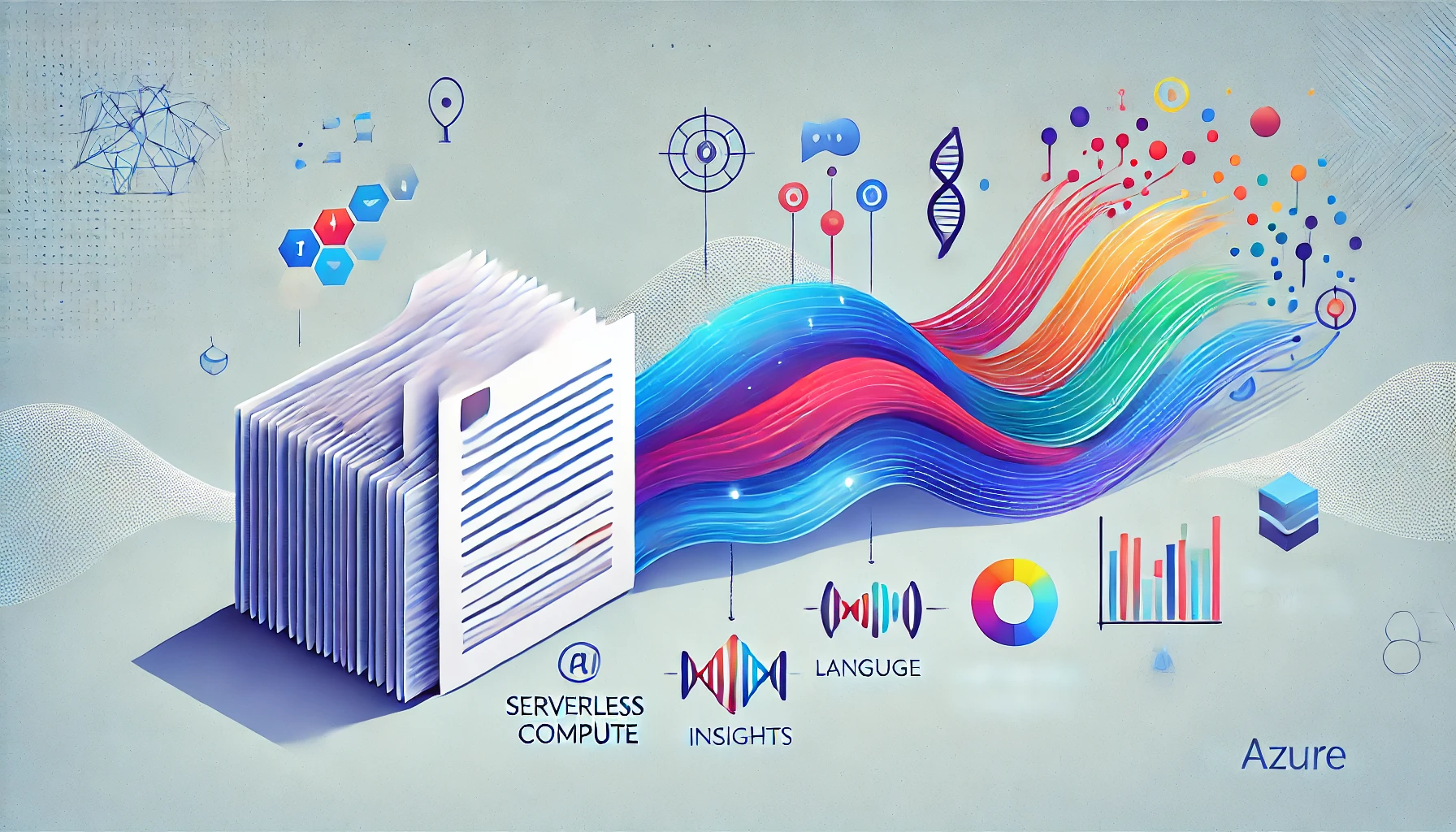
End-to-End Document Transformation: The Azure AI Toolkit in Action
Transform complex, multilingual PDFs into accessible, actionable insights—instantly. With Azure’s AI services, you can extract text, translate content, summarize information, all from a single document upload.
Lately, it feels like everywhere you turn, there’s a tidal wave of new AI tools crashing onto the shore—each one promising to transform how we handle data, documents, and everything in between. Amid this swirling sea of complexity, I took a plunge into Azure’s ecosystem—Document Intelligence, AI Translator, and Azure OpenAI. I’m far from the smartest person in the room, so getting started seemed daunting, to say the least. To my surprise, the entire process was more approachable than I ever imagined—dare I say, even easy to understand.
You know that feeling when you have a gnarly PDF, maybe a document in a language you can’t read, and you think, “Wouldn’t it be great if I could just extract the text, translate it, summarize it, a” Well, that’s basically what I’ve been tinkering with. And, before you accuse me of nerding out too hard, let me show you how this all came together using a simple Azure Function and a quick front-end with Streamlit.
What’s Going On Under the Hood?
The Backend: Azure Function + Azure AI Services
Azure Document Intelligence: This service is the first step. When you upload a PDF, the Azure Function slurps it up and sends it off to Document Intelligence. It’s like having a team of diligent interns who instantly turn the PDF into workable text (except no interns were harmed in the process).
Azure AI Translator: Once we have that text, we ask Azure’s Translator to convert it into English. Maybe the source doc is in Chinese, French, or something else entirely—doesn’t matter. The translator service calmly handles it.
Azure OpenAI Summarization & Description: After translation, we hit the OpenAI endpoint to summarize the text and give a neat description. This is where things get delightfully meta. The service reads over the text and produces a crisp summary, highlighting the key points. It’s perfect for that “TL;DR” we often crave.
Azure Function App: Think of the Azure Function as your backstage coordinator. When a PDF hits the upload endpoint, this serverless maestro takes center stage—handing off the file to Document Intelligence, then translating the extracted text, and finally orchestrating the call to OpenAI for summarization and description. All you need to do is provide the document; the function handles the rest.
The Code in Action
Let’s say we have a function endpoint at /api/translate. The Streamlit app takes the PDF you upload and sends the raw binary straight over to the Azure Function. The function orchestrates all the fancy AI calls and returns a JSON payload like this:
[
  {
    "original_text": "Some original text from PDF...",
    "detected_language": "zh-Hant",
    "detected_language_score": 1.0,
    "translated_text": "Some translated English text...",
    "summary": "A concise summary of the translated text.",
    "description": "A more detailed explanation, purpose, and audience."
  }
]
This structured output is gold. You can build a UI around it any way you like—highlight key sentences, show a progress bar for each step, or even store the results in a database for later use.
The Frontend: Streamlit as a Placeholder
Now, I didn’t want to build a super-slick UI because, let’s face it, I’m no designer. I just needed something that works. Enter Streamlit, the Swiss Army knife of quick data app interfaces. With a couple lines of Python, I got a simple web page where I can:
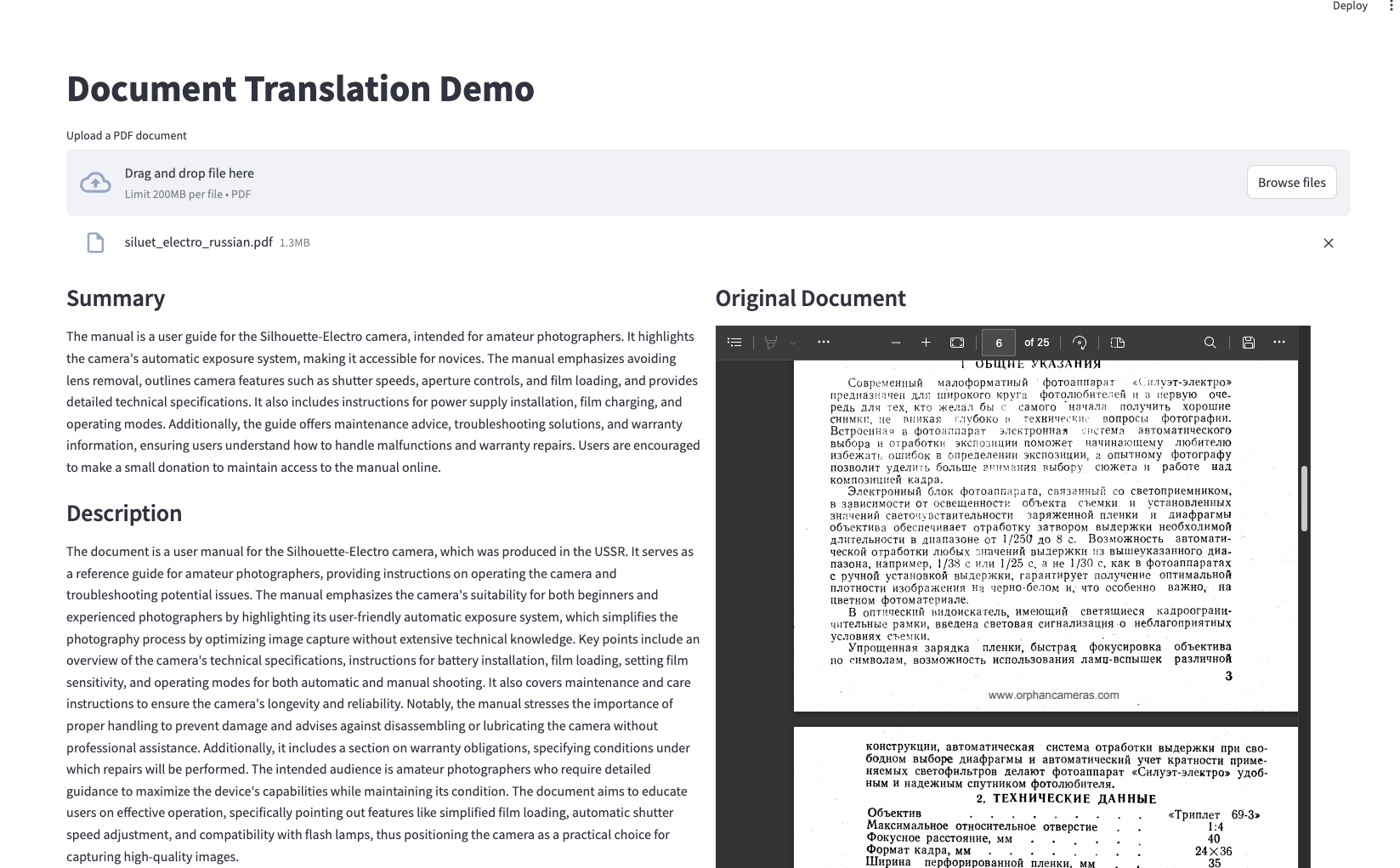
- Upload a PDF file (no drama, just drag & drop).
- Send that PDF to the Azure Function.
- Watch as it returns JSON data including original text, translated text, summary, description—basically turning my dull PDF into knowledge candy.
- Display that info side-by-side, so I can see the original and translated text at once.
And if you’re thinking, “But I want to integrate this into my own frontend!”—awesome. That’s the point. Streamlit is just a stand-in. You could easily swap it out for React, Vue, Svelte, or even plain HTML & JS if you’re feeling old-school.
Why This Matters
We live in a globalized world, and information flows in every language and format imaginable. If you’re juggling documents in various languages, trying to understand and summarize content from diverse sources, this is huge. The best part? You didn’t have to hack together complicated machine learning pipelines. You just composed a few existing Azure services like LEGOs.
Next Steps
- Expand to Other Media: You can follow a similar pattern for audio or video using Azure Video Indexer.
- Fine-Tune Summaries: Adjust the OpenAI prompts for more nuanced summaries or style (friendly, professional, bullet points—whatever suits your brand).
- Real-World Integration: Plug this backend into your organization’s intranet to help employees digest research reports in unfamiliar languages. Or build a user-facing feature for your customers, letting them quickly process user manuals or knowledge bases without language barriers.
Wrapping Up
This setup is a reminder that we don’t need to be “experts” to build powerful, AI-driven experiences. Azure’s suite of services and a bit of Python glue code can quickly transform a dull PDF into something living, breathing (metaphorically), and downright useful.
If you’re ready to try this out for yourself, head over to the GitHub repository where the code lives. Clone it, run it locally, or adapt it to your own environment. At the very least, you’ll never look at PDFs the same way again—and at best, you’ll have a new tool in your AI toolkit.