The how, why, and where of Azure and Microsoft cloud services is arguably the most time-consuming and consistently misunderstood conversation I have the pleasure of having. Several times a week, every week. That complexity only compounds when the conversation involves U.S. Government organizations, who bring their own layered sets of compliance and regulatory requirements to the table. And Microsoft has built an ecosystem designed specifically for U.S. Government. Built to meet the various regulatory requirements required for different organizations. Which, once you see the scope of what that ecosystem covers, gives you a pretty clear picture of what we’re actually working with.
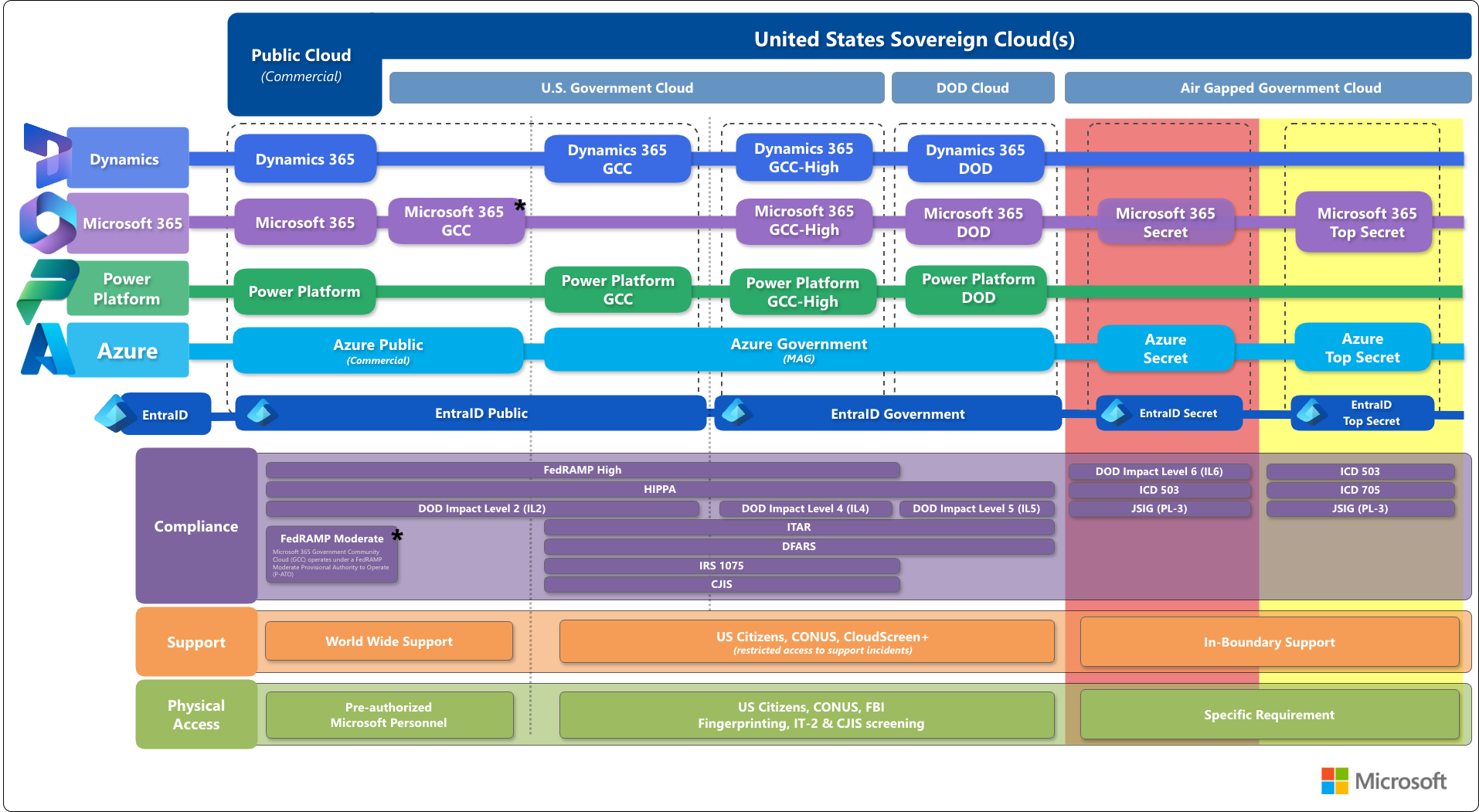
To aid myself and others in these conversations I sat down to create a Cloud Map. A picture that aims to display the various Microsoft cloud services, and how it all fits together. Whether you are speaking about how a user in Microsoft 365 Government Community Cloud (GCC) can access a service hosted in Azure Government (MAG), or where Microsoft maintains FedRAMP High authorization.
What does the Cloud Map show?
The Cloud Map is a tool to aid in understanding the location and relationships of the Microsoft Cloud services available for use by U.S. Federal Government organizations. Describing the cloud services, interoperability, compliance boundaries, and how it is all supported.
More specifically, it breaks down into four areas:
- Cloud Boundaries — the where of services and who has access to them
- Service Families — the what of the Microsoft cloud ecosystem (Azure, M365, Power Platform, Dynamics 365)
- Compliance Overlay — the regulatory frameworks and certifications Microsoft has achieved across each boundary
- Support Models — the how of getting help… which changes more than you’d expect depending on where you are in the map
Each of these layers on its own is a full conversation. Stack them together and you start to see why navigating this landscape is the kind of thing that keeps people busy.
How to use the Cloud Map
While a picture is worth a thousand words. There are usually some extra words needed to make sense of the picture.
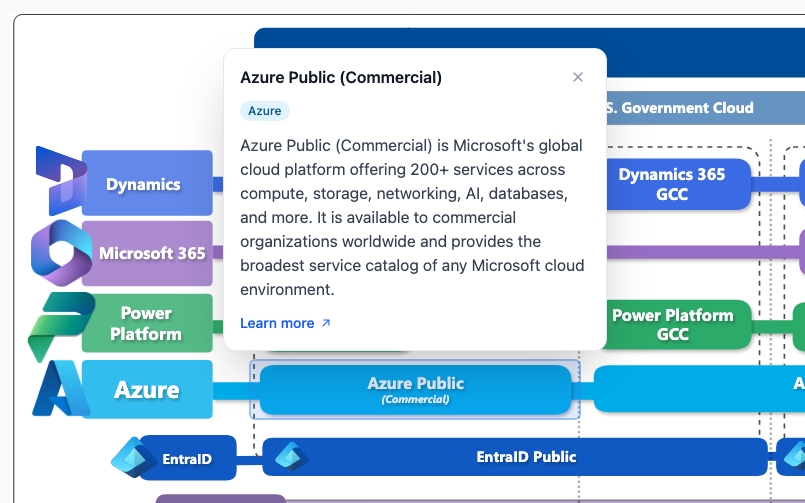
Click on an individual block in the Cloud Map and get a pop-up with additional information on that section.
What I learned…
This picture, map, whatever you want to call it, goes a long way in making these conversations easier. I worked on it for several months with peers, trying to get as clear and accurate a picture as possible. For the most part, I believe I’ve achieved that goal with something that stands on its own and covers many of the conversations that come up.
There are still some areas around service interactions and specific scenarios that will require additional explanation. I will be working on add-on components to this map to clarify and make more sense out of those topics.
Try it out for yourself
Ready to explore it yourself? Check out the Cloud Map and see how all of the pieces fit together.