A common request in the enterprises large and small, is a report on inactive accounts. The process in Azure Active Directory (AAD) is different than the back in the Active Directory days, but still very possible. In some ways it’s even easier to use Azure Logic Apps and the Microsoft Graph API to query and build a report in one go.
The Microsoft Graph API is compatible with just about any way you would want to call an API. PowerShell, Python, or plain jane HTTP it all works. The least effort and sometimes easiest way is to use an Azure Logic App to build out a low/no code solution. Which can query and process the data, and simplify authentication by using a Managed Identity (MSI).
For this first part we are going to walk through the process of creating a Logic App and the required configuration and setup to query the data from Azure AD.
Requirements
- Active Azure enrollment/subscription
- Azure Active Directory Premium (P1/P2)
- Ability to provide AAD admin consent
- Logic App
Create Logic App
First step is to create a new logic app in your existing Azure subscription. To begin there is no special configuration needed. Use your preferred method to deploy an empty Logic App. There isn’t a right or a wrong way.
Managed Identity
A System Assigned Managed Service Identity (MSI) will be used to allow the Logic App to authenticate to the Microsoft Graph API directly without the need to manage an separate identity/service principal.
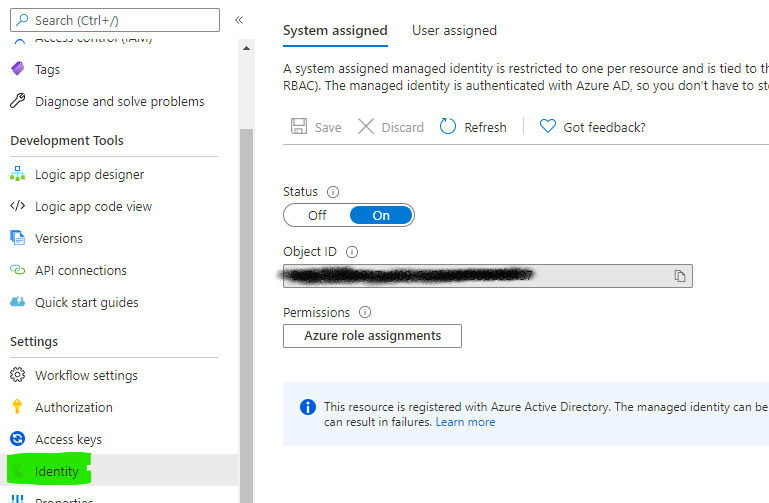
Enable System Assigned Identity
- From the Logic App select the ‘Identity’ blade
- Switch Status to ON
- Click Save
When completed a new Enterprise Application will be created in Azure AD to represent the Logic App. This identity can be granted rights and permissions the same as any other AAD application / identity.
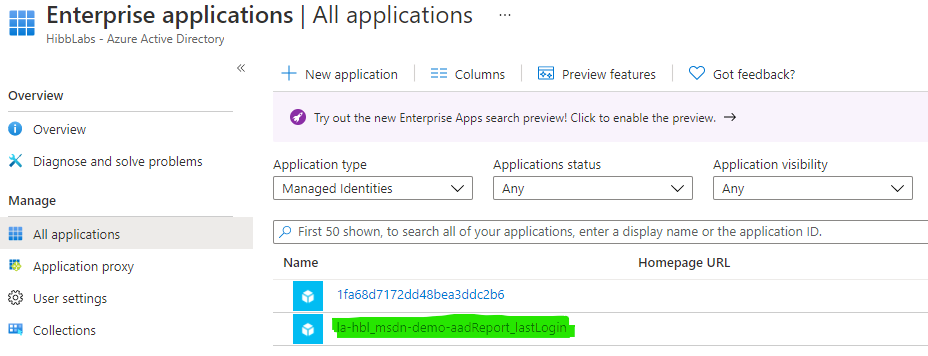
Azure AD Permissions
The Logic App identity requires permissions in Azure AD to read user properties from the directory. tThe required permissions are:
| Permissions | Description |
|---|---|
| Domain.Read.All | Grant permissions to read all domains |
| AuditLog.Read.All | Grants read access to the Azure AD audit logs |
| User.Read.All | Grants permissiont to read all user profiles in the directory |
I put together a PowerShell script to assign the required permissions to Logic App Managed Identity. The script requiers the AzureAD PowerShell modules. And can be run from the Azure Cloud Shell if available.
This is a rough script. Spray and pray without any error handling… yet(tm)… {: .notice—info}
#Requires -Modules {AzureAD}

[CmdletBinding()]
param (
    # Azure Active Directory TenantID
    [Parameter(Mandatory=$true)][string]$TenantID,
    # Matches the resource name
    [Parameter(Mandatory=$true)][string]$MSIDisplayName
)

# Microsoft Graph App ID
# (Don't change, the same for all AAD directories)
$GraphAppId = "00000003-0000-0000-c000-000000000000"

$requiredPermissions = @(
    'Domain.Read.All',
    'AuditLog.Read.All',
    'User.Read.All'
)

Connect-AzureAD -TenantId $TenantID

$MSI = (Get-AzureADServicePrincipal -Filter "displayName eq '$MSIDisplayName'")

$GraphServicePrincipal = Get-AzureADServicePrincipal -Filter "appId eq '$GraphAppId'"

$AppRole = @()

$requiredPermissions | ForEach-Object {
    $permissionName = $_
    $temp = $GraphServicePrincipal.AppRoles | `
        Where-Object {$_.Value -eq $permissionName `
            -and $_.AllowedMemberTypes -contains "Application"}

    $AppRole += $temp
}

#Assign permissions to Managed Identity
# NOTE: This will throw and error if
# the permission is already applied.
$AppRole | ForEach-Object {
    New-AzureAdServiceAppRoleAssignment -ObjectId $MSI.ObjectId `
        -PrincipalId $MSI.ObjectId `
        -ResourceId $GraphServicePrincipal.ObjectId `
        -Id $_.Id
}
With a successful run of the script the MSI permissions will be updated in Azure AD.

Logic App workflow
The Logic App workflow will take care of running the query against the Microsoft Graph. The results of the query will be returned as a JSON object. Following are the steps to setup the workflow to run the query. Parsing the JSON for the purpose can be easy and straight forward, or complicated. I am not going into that part in this post, but stay tuned.
Trigger
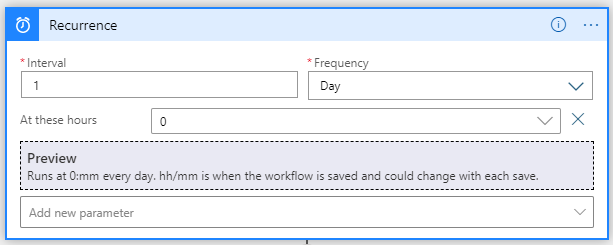
Our goal with this logic app is to generate a report on a regularly basis. For this example I am using a time-based trigger to start the workflow everyday at midnight (00:00:00).
HTTP Action (GET MS Graph)
There is not currently a dedicated connector for Logic Apps to call the Microsoft Graph API. The HTTP Action can be used to make REST calls to the API. The action allows the definition of query strings, and configuration of different authentication methods, including managed identity.
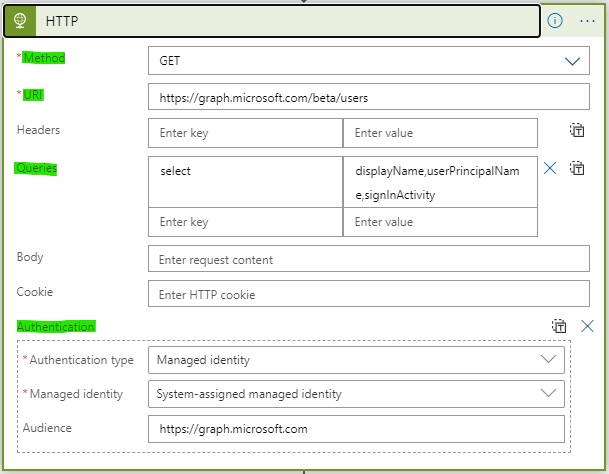
Trigger Options
| Option | Header Label |
|---|---|
| method | GET |
| uri | https://graph.microsoft.com/beta/users |
Query
| key | value |
|---|---|
| select | displayName,userPrincipalName,SignInActivity |
User logon dates are part of signInActivity. Azure Active Directory Premium is [required to query the data through the Microsoft Graph
Authentication
| Authentication Type | Managed Identity | Audiance |
|---|---|---|
| Managed Identity | System-assigned managed identity | https://graph.microsoft.com |
This configuration authenticates to the Microsoft Graph with the Logic App MSI to query for all users in the directory. The query will return names, UserPrincipalNames, and recent sign on activity, including the last sign-on date and time. Output from this action will be the raw JSON payload returned from the Graph API query.
Give it a Go
The Managed Identity (MSI) role assignment script and other bits used in this process are up in my GitHub repo.
Github Repo - aad-graph-lastSignonReport